11.21.2009

Chrome OS and Security


Many people shy away from cloud computing because they think it is insecure. They think just because they can't touch the hardware that their data is on that it is being passed around willy nilly. However, I think they are thinking about security the wrong way. And Chrome OS will protect their data in ways they can't see. Yet.

How Will Chrome OS  Be Safer Than Windows or Mac OS X?

Google is designing Chrome OS to be secure from the ground up. With vital operating system aspects in read-only memory and boot-time checkups on your system, Chrome OS will be much safer than current systems. Google has released an overview of security here: Chrome OS security overview.

"The perfect is the enemy of the good". The developers of Chrome OS point out that they are not searching for some "mythical perfect system" for security in the operating system. They know that a good system has many fallbacks in the case that one part fails. This means that a virus cannot infect your machine if the creator beats a single security feature.

"Don't scapegoat our users". Oftentimes I hear "Well they shouldn't have went to that website or downloaded that program". Google wants to make it to where we can take calculated risks with our web browsing and not be infected with malware. When using Chrome OS, you won't be blamed for "doing something stupid". The system will be secure enough for you to do what you want.

Is the Cloud Safe?

As for cloud computing, I trust a locked server farm more than my backpack. And I bet your briefcase doesn't have security guards that are paid to protect it 24/7. So why are people so worried about keeping their data in the cloud? If it's that "private" encrypt it before uploading. And if your data isn't on your laptop, then it can't be swiped by some dude that is just walking by. Google has spoken of plans of encrypting all user data in Chrome OS. Just another way Chrome OS will present security features that are unheard of today.


11.20.2009

Chrome OS FAQ


PCWorld has a great piece up about Chrome OS. It's a FAQ-type article that explains some of the confusion points about Google's upcoming operating system. There's just one section that I have to add a "correction" to:

Will you be able to work offline?
JR Raphael from PCWorld says pretty much "no". I say nearly a certain "yes". Raphael correctly explains that all apps (as we currently know) will be web apps. This means you will use Gmail or Yahoo or another web-based email service, not Outlook or Thunderbird. He says that without a network connection, only some functionality off apps will be present, that developers "may be able to build in a small amount of offline functionality for their programs".

However, developers have already done this. Gmail has offline functionality. You can read emails and write emails without an Internet connection. Gmail simply sends the newly composed emails and downloads newly received emails when the connection is restored. Just like Outlook.

Other than that one small misstep, Raphael does a good job of clearing up the Chrome OS confusion. Check it out here: "Google Chrome OS: A Simple FAQ"

How to Install Chrome OS in VirtualBox

As I revealed in a previous post (First Look at Chrome OS) I have installed the early Chrome OS build in VirtualBox. Here I will walk you through the steps of how to do it yourself. I am using a VirtualBox on Mac OS X 10.6.2, so a few things might be different if you are attempting this in Windows or Linux.

First you need to download the Chrome OS image from Gdgt.com (Chrome OS VM image download) and download and install VirtualBox (VirtualBox download). Installing VirtualBox is pretty straightforward so I won't go into that. Choose the VMware image on Gdgt.com, as I could not get the VirtualBox image to boot. You can still use the VMware image with the VirtualBox program.
1. Make a New Machine


After you have VirtualBox opened up, Select the "New" button in the top left corner to create your new Chrome OS machine. Next, name your machine (I chose Chrome OS) and select "Other" under operating system and "Other/Unknown" under version. I think it would be okay to leave it on "Windows" and "XP" for these options, but I'm not sure if VirtualBox does anything special for a Windows machine, so I went with a generic start.

Update: It looks like the network connection won't work in Chrome OS for some people if they choose "Other" for their OS. We found out (through the discussion in the comments) that picking "Linux" as the operating system and "Linux 2.6" as the version might work better for some host PCs.

2. Select the amount of RAM for you Chrome OS virtual machine


Next you select the amount of RAM to dedicate to your Chrome OS virtual instance. I selected 542 MB of RAM as this should be plenty for Chrome OS and not push my test machine (2 GB of RAM total) to the limit. You would choose the amount of RAM you think is appropriate here.

3. Select the Chrome OS disk image


Next is the hard disk image selection. Select "Use existing hard disk" and click the small folder icon next to the text field to browse for the Chrome OS .vmdk image you downloaded. You will need to add a new disk image by selecting "New" in the top left corner and then browse to where your Chrome OS image was downloaded.
Continue after the break for the rest of the guide.

First Look at Chrome OS


Word comes from Gdgt.com that they have a virtual machine image of Chrome OS. As you know, Google released the kibbles and bits of the Chrome OS source code yesterday and it looks like a few brave hackers have put it together for an easily digestible virtual operating system install.

I decided to take my hand at installing Chrome OS in VirtualBox to see how the infant of an OS is coming along. The system booted very quickly. This is definitely going to appeal to those using Windows XP (or even Ubuntu) on their netbooks, as it often takes in excess of an entire minute to boot them.

I also thought the feature of logging into Chrome OS with your Google credentials was convenient. This means if I wanted to borrow my friend's Chrome OS device, he could just sign out and let me log on. There would be no issue of his private data being shown to me.

However, Chrome OS (or Chromium OS, as this source code version is called) is still a very rough version. My trackpad actually stopped working after a few minutes into my session. But overall, I really like where Google's Chrome OS is going.

You can download the virtual machine image here: Chrome OS VMware or VirtualBox Image (we recommend VirtualBox, which you can download here: VirtualBox for Windows, Linux or Mac).
Gdgt also has a USB-bootable image ready, but they warn that it might be for the faint of heart (it involves Linux, oh my!). Make sure you download the VMware image, even if you are using VirtualBox. The VirtualBox image would not boot for me.

So even though Google says Chrome OS will not be available for a "download and install to your computer" type opportunity, we know that with source code running in the wild, it's only a matter of time. Soon we'll have an .iso image to install to your favorite test machine, although it might be a bit hardware limited. Oh, the magic of open source software!

11.19.2009

Chrome OS Boot Video


The narrator is a bit dry, but this video will give you an idea of how Chrome OS will accomplish its lightning fast boot up.

Google's Official Chrome OS Video


Interesting...So what do you guys think? Let us know in the comments!

Chrome OS Event Initial Overview

Well, unfortunately, the VP of Product Management at Google,  Sundar Pichai, started today's event off by saying there is no beta of Chrome OS available yet. He then went into describing how far the Chrome web browser has come:


And now for the boot up! Pachai says that Chrome OS will aim for a 14 second boot-up.


Above is the first real screenshot of Chrome OS.
And for all you haters out there: Chrome OS will have Flash support. There were many doubts that this would happen, but it has.


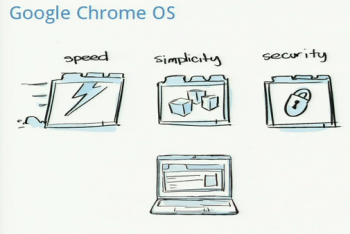
Pichai explained that Chrome OS's goals where the same as Chrome's: 


  • Speed
  • Simplicity
  • Security
Apps will be web-based, no installing. They will be tabs of the Chrome browser.

Matt Papakipos took the stage after Pichai to explain the development side of Google's operating system. The OS will have automatic updates, meaning no users are left behind with security vulnerabilities.  Papakipos also explained how Chrome OS will be different from current systems. He explained that if you get a new computer, you just log into Chrome OS on it and all of your data is there for your, waiting.

And here's the downer: "As a comsumer, you cannot download Chrome OS. You have to go buy a device with the system on it." Well that about does it for me. I thought we would be able to download and install Chrome OS. I mean, isn't that what open source is supposed to be about?
Continue on after the break for the Chrome OS event photo collection.